Download the Installer
- Visit https://www.transgogo.com/
- Download TransApp.OSX_v1.1.X.pkg to your computer.
Mac Installation Guide
Follow these steps to download, install, update, and create a desktop shortcut for TransApp on Mac.
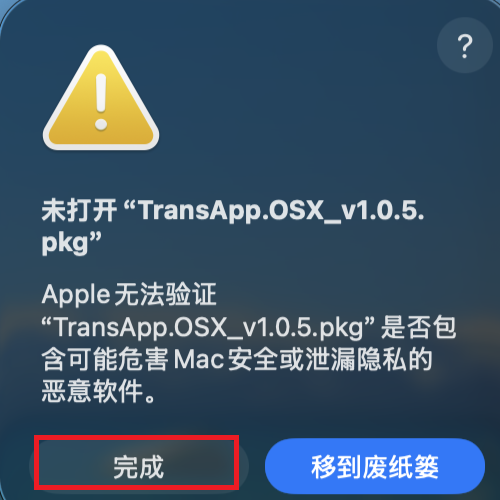
Double-click TransApp.OSX_v1.1.X.pkg. In the dialog that appears, click Done.
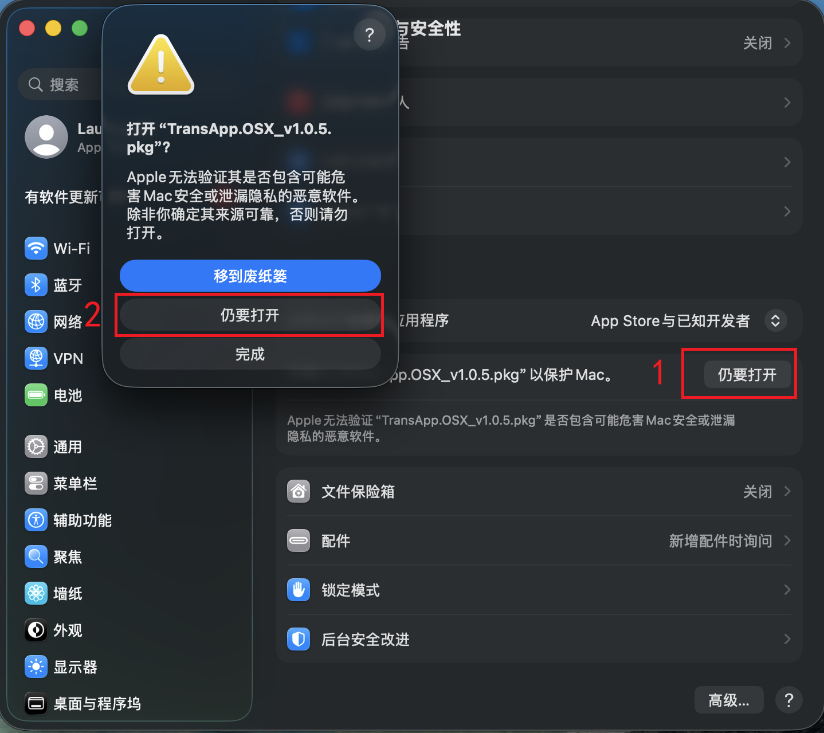
Open System Settings → Privacy & Security. At the bottom, find the blocked app notice and click Open Anyway.
Continue with the normal installation process.
When finished, find TransApp.OSX in Applications and launch it.
Open Applications.
Drag TransApp.OSX.app to the Trash.
When a new version is available, a confirmation dialog appears after login. Click Download Update to download and install, or Cancel to skip for now.
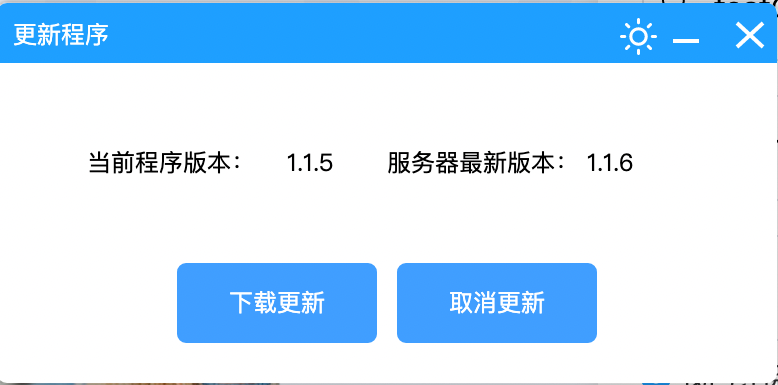
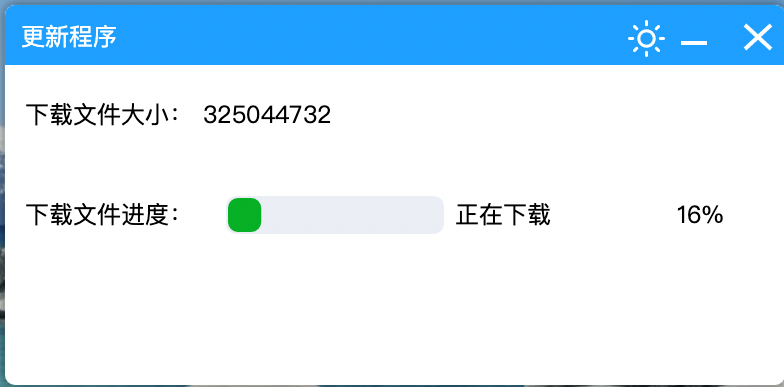
Clicking Download Update starts downloading the updater.
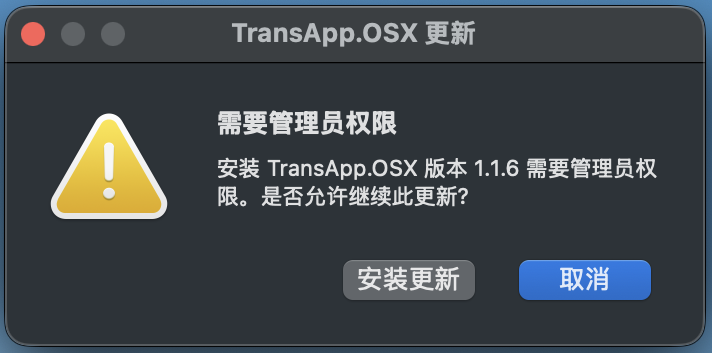
Installing the update requires administrator permission. Choose Install to proceed, or Cancel to exit.
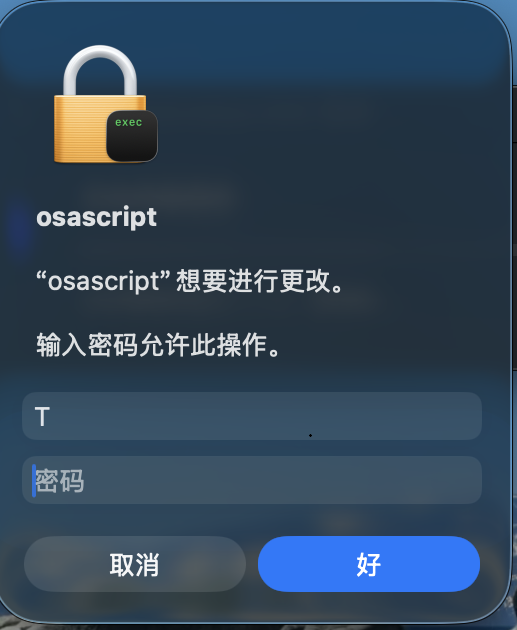
If a password prompt appears during installation, enter your Mac password.
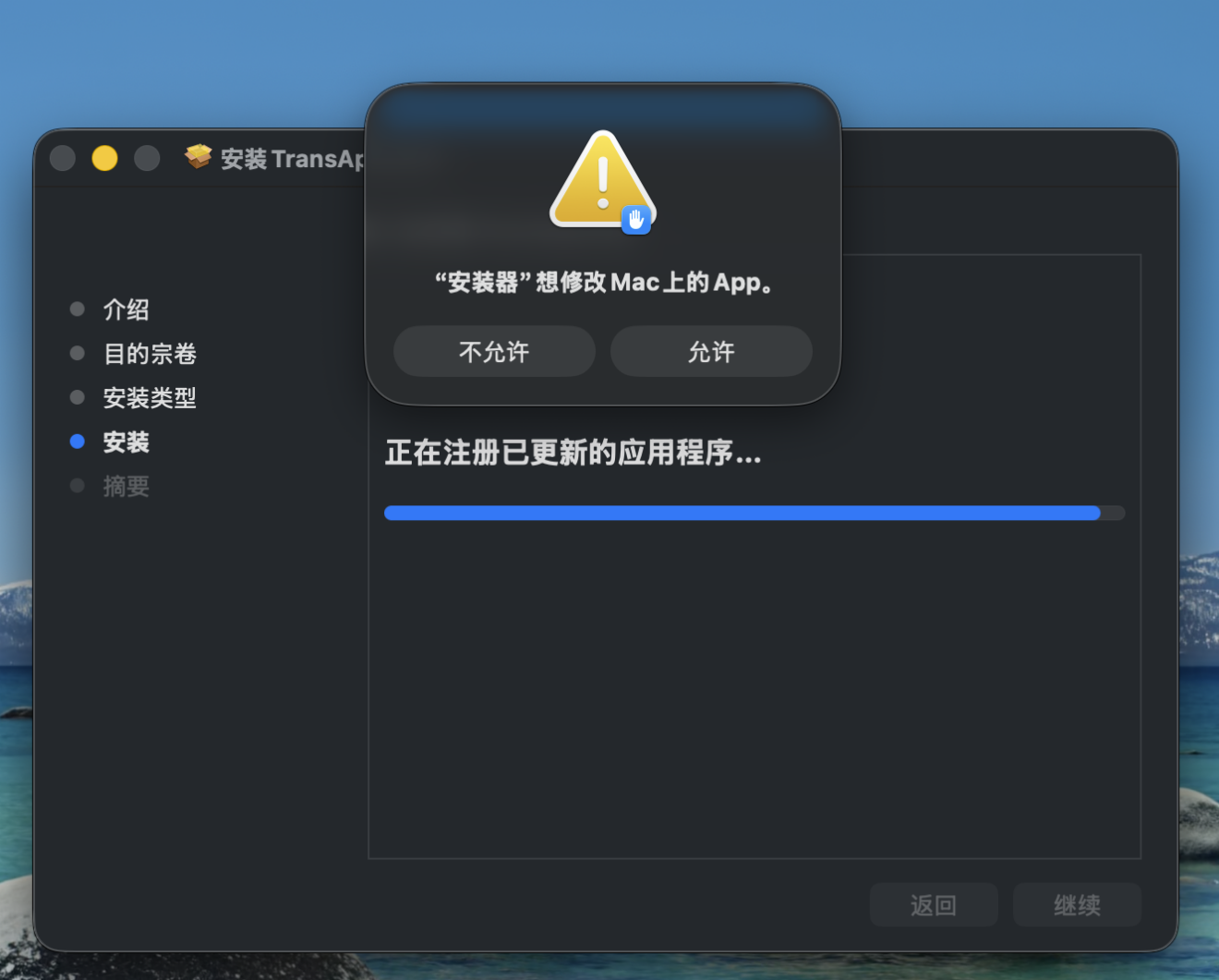
If macOS asks whether to modify the app, click Allow.
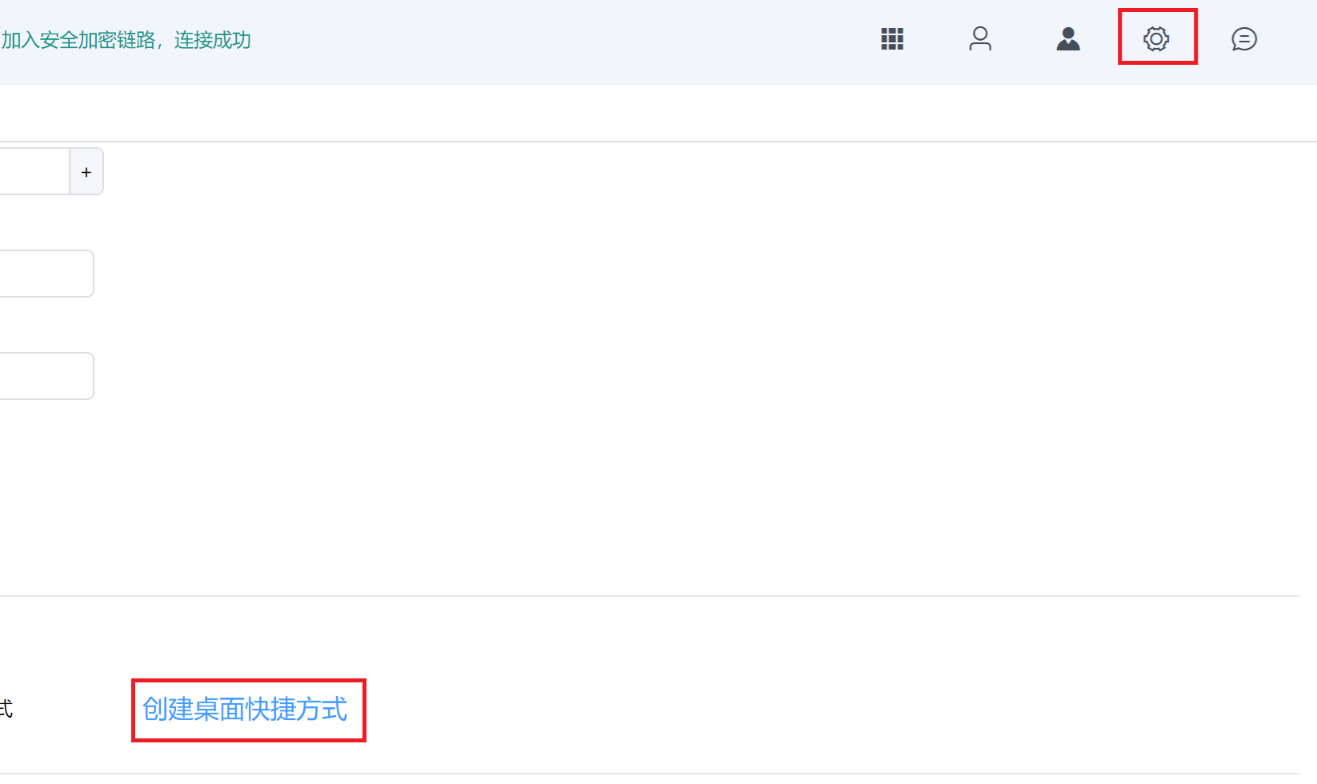
In v1.1.8 and later, open System Settings in the app, then click Create Desktop Shortcut to add a shortcut on your desktop.